Website backups are easy to ignore until the day they become the most important page on the site. If you have ever wondered which tool actually makes recovery less painful, this review is for that moment.
When people start looking for backup software, they usually ask the same practical questions: How often should I back up? How hard is the restore process? Can I keep copies off-site? And, perhaps the most honest question of all, will this tool still feel simple when something has already gone wrong?
Everything fails all the time.
That line from Werner Vogels is quoted so often because it is annoyingly useful. It matches the reason backup tools matter in the first place. For a baseline reference, the WordPress developer guide on backups is still worth reading. Even a well-run site can lose content, break during an update, get hit by a bad plugin conflict, or suffer a hosting issue. The official product pages for UpdraftPlus and Jetpack Backup both center their value on scheduled backups and straightforward restore paths, which is a sensible direction for almost any site owner.
In this guide, I compare five current tools that help with website backup and restoration, then separate the marketing noise from the practical differences. You will see where each tool fits, what users tend to praise, where the trade-offs are, and which one makes sense if your priority is budget, simplicity, or advanced recovery work. If you want related maintenance guidance after this, the site's blog index collects additional guides, and the services page is the place to look if you want hands-on help.
For readers who want the shortest possible summary: the best backup tool is the one you will actually configure, test, and keep using. A backup that exists only in theory is just an expensive story.
Website backup terms, in plain language
Before comparing tools, it helps to define the words that come up over and over. Most backup software sounds similar until you need to restore something. Then the details matter.
| Term | What it means | Why it matters |
|---|---|---|
| Full backup | A complete copy of the site, usually files plus database. | Best when you need a full recovery point or want to move a site. |
| Incremental backup | Only the changes since the last backup are saved. | Uses less storage and can run more often without heavy overhead. |
| Restore point | The exact version of the site you can roll back to. | Good tools make restore points obvious, not hidden in a maze. |
| Off-site storage | Copies kept somewhere other than the web host. | Protects against host-level failure and simple bad luck. |
| Staging | A private copy of the site for testing changes. | Useful when you need to verify a restore or test updates safely. |
| Migration | Moving a site from one host or domain to another. | Many backup tools also handle migration, which can save a separate tool. |
The simplest way to think about backup software is this: backup stores a safe copy, restore puts that copy back where it belongs. Some tools only do one part well. The stronger ones make both parts feel routine.
Top 5 tools at a glance
This is the fast comparison before the deeper review. The ratings below reflect current WordPress.org or vendor listing snapshots at the time of writing, which is useful context but not the whole story. A tool can have a strong rating and still be the wrong fit for your workflow.
| Tool | Best for | Current snapshot | Strength in one line |
|---|---|---|---|
| UpdraftPlus | Site owners who want a balanced, familiar backup system | 96% rating, 8,557 ratings, about 3 million active installs | Flexible scheduling with a broad storage and restore setup |
| Jetpack Backup | Users who want backup to sit inside a wider security stack | 76% rating, 2,402 ratings, about 3 million active installs | Simple recovery with managed WordPress positioning |
| BlogVault | Teams that care about off-site recovery, staging, and migration | 90% rating, 326 ratings, about 80,000 active installs | More managed, more opinionated, more recovery-focused |
| Duplicator | Migration-heavy sites and technical users who want cloning power | 98% rating, 4,905 ratings, about 1 million active installs | Strong for moving, cloning, and packaging a site cleanly |
| WPvivid Backup & Staging | Budget-conscious users who still want broad capability | 98% rating, 1,503 ratings, about 900,000 active installs | Generous feature set with backup, restore, and staging options |
Use this table as a filter, not a verdict. The right choice depends on whether you need simple recovery, managed off-site storage, frequent staging, or a tool that also handles migration with minimal fuss.

1. UpdraftPlus
UpdraftPlus is the tool I would describe as the dependable middle ground. It does not try to make backup feel glamorous, which is probably part of why it works. The current WordPress.org listing shows a 96% rating from 8,557 ratings and about 3 million active installs, which is a strong sign that a lot of site owners have found it useful in real life.
The basic appeal is straightforward: schedule backups, send copies to remote storage, and restore when needed. That may sound ordinary, but ordinary is exactly what most people want from backup software. A backup tool should not become a second project.
UpdraftPlus also earns its place because it is flexible without being too theatrical. It supports the backup-and-restore tasks that small sites need, but it also gives more advanced users enough control to shape the schedule and storage pattern around their hosting setup.
What stands out
- Backup scheduling that fits routine maintenance instead of forcing a manual habit.
- Remote storage support that keeps copies away from the primary host.
- Restores that are built into the same mental model as backups, which matters when time is short.
- A huge user base, which usually means more documentation, more troubleshooting threads, and fewer surprises.
Pros
UpdraftPlus is easy to recommend for the reader who wants broad usefulness. It covers the basics well, but it also scales into more serious maintenance routines. That makes it especially useful for freelancers, small agencies, and site owners who do not want to switch tools later just because the site grew a little.
Its restore story is also a strength. The best backup tools are the ones that make recovery feel like part of the same workflow, not a separate emergency process. UpdraftPlus tends to stay on the practical side of that line.
Cons
The downside of being the middle ground is that it can feel less specialized than a managed recovery product. If you want a very guided recovery experience or a broader security bundle, another tool may feel cleaner. Some of the more advanced features also live in paid tiers, so the free version may be enough for simple use but not enough for everything you want.
That is not a failure. It is a trade-off. UpdraftPlus tries to be useful to many kinds of users, which is usually wise, but it is not the most luxurious option on the list.
Best fit
Choose UpdraftPlus if you want a proven backup tool that is flexible, familiar, and strong enough for most normal WordPress sites. If your first priority is a dependable habit rather than a glossy interface, this is one of the safest starting points.
Common review theme: users tend to praise the combination of simple scheduling and the feeling that the tool is built for real maintenance work rather than software theater.

2. Jetpack Backup
Jetpack Backup fits a different kind of reader. It is less of a standalone backup specialist and more of a managed service inside a larger WordPress security and performance ecosystem. The current WordPress.org listing shows a 76% rating from 2,402 ratings and about 3 million active installs, so the product has reach, but the review picture is more mixed than some of the others here.
That mixed picture is not automatically a warning sign. It usually means expectations vary because Jetpack touches more than one job. Some users value the convenience of keeping backup, security, and site management in one place. Others would rather keep each function separate.
For the right person, though, Jetpack Backup is attractive because it simplifies the recovery conversation. If you already use Jetpack or want a more managed feel, the backup product can reduce the number of moving parts you need to monitor.
What stands out
- Managed positioning that lowers the amount of self-service setup.
- A backup approach tied to the wider Jetpack suite, which some site owners find comforting.
- Recovery that is designed to stay accessible rather than technical.
- Good fit for people who would like backup to be part of a broader maintenance bundle.
Pros
Jetpack Backup is appealing when convenience matters more than total control. If you are already inside the Jetpack ecosystem, it can reduce the number of separate vendors you have to think about. That can be worth a lot for non-technical owners who just want to know the site can be restored without a long panic sequence.
Its managed nature also makes it easier to explain to a client or team member. You are not buying a puzzle. You are buying a recovery path.
Cons
The obvious trade-off is that you are buying into a larger platform. That can be good, but it can also be heavier than you need. If you want a purely backup-centric tool, Jetpack can feel like more system than necessary. The review numbers also suggest a more divided user experience than some of the other contenders.
In other words, Jetpack Backup is strongest when the surrounding ecosystem helps, and weaker when you only want one narrow job done in a very lean way.
Best fit
Choose Jetpack Backup if you want a managed solution and you are comfortable with the broader Jetpack stack. It is a better fit for readers who value convenience, supportability, and a familiar recovery process over granular control.
Common review theme: users who like it tend to mention simplicity and the comfort of having backup tied to other site protection tools. Users who do not like it tend to say the bundle is more than they needed.

3. BlogVault
BlogVault is the most clearly managed recovery tool in this group. It is built around the idea that backup is not just storage, it is a route back to a working site. The current BlogVault product page shows a 90% rating from 326 ratings and about 80,000 active installs. That is a smaller footprint than some of the plugin-directory giants, but it also points to a more focused user base.
The feature set is where BlogVault starts to separate itself. It is known for incremental backups, staging, migration, and one-click restore. In practice, that combination is useful for agencies, maintenance teams, and site owners who want the same product to help before a failure, during a failure, and after a failure.
BlogVault is also one of the better options for people who care about off-site recovery and a cleaner operational story. The product feels built for users who would rather prevent chaos than improvise during it.
What stands out
- Incremental backup logic that is friendlier to busy sites than repeated full copies.
- Staging support for testing updates or verifying a restore before pushing changes live.
- Migration tools that make it useful beyond pure backup work.
- A managed tone that suits teams and agencies more than casual hobby sites.
Pros
BlogVault is strong when recovery needs to be precise and calm. It is especially appealing for users who do not just want a copy of the site, but a path to verify that the copy actually works. That makes it easier to trust when the pressure is real.
It also deserves credit for handling more than one operational problem. Backup, restore, migration, and staging often live in separate tools. BlogVault tries to reduce that split, which can save time and reduce mistakes.
Cons
The main drawback is cost and scope. A more managed platform usually comes with a more managed price, and that can be overkill for a tiny site or a budget-sensitive owner. It is also not the lightest choice on the list if you want the simplest possible setup.
It is a good tool, but it is a good tool with opinions. That is helpful until those opinions differ from yours.
Best fit
Choose BlogVault if you want a serious recovery platform, especially for a business site, agency workflow, or environment where staging and migration matter as much as backup. It is one of the best options when the real question is not just how to store copies, but how to get a site safely back online.
Common review theme: reviewers often value the way BlogVault narrows the distance between backup, staging, and restore. That combination is why it appears on so many serious maintenance shortlists.
If you want to inspect the product directly, the official BlogVault backup page is the best place to start.
4. Duplicator
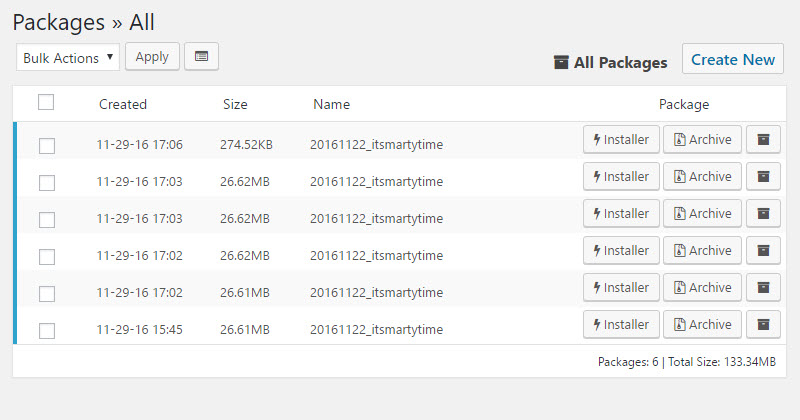
Duplicator is the sharp tool in this list. It is especially useful when the real job is cloning, moving, or packaging a site, and backup is part of that larger workflow. The current WordPress.org listing is strong: 98% rating from 4,905 ratings and about 1 million active installs. That is the sort of number that usually means the product has earned a lot of trust.
Where Duplicator shines is site portability. It helps with backups, yes, but it is also built for migration and cloning. That makes it a favorite for developers, agencies, and anyone who regularly moves sites between hosts, domains, or environments.
It is not the tool I would hand to a casual site owner who wants a friendly one-button experience. It is more likely to reward a user who understands what they are trying to move and why.
What stands out
- Strong migration and cloning workflow.
- Useful for packaging a site in a way that can be moved with less guesswork.
- Good fit for technical maintenance, development, and deployment tasks.
- High review scores that suggest it has a loyal user base.
Pros
Duplicator is excellent when backup is only one part of the story. If you are moving a site, creating a copy for testing, or duplicating a build across environments, it can save a lot of manual work. That is the kind of efficiency people remember after the first successful restore or migration.
It also has one of the strongest reputation signals in the group. That does not make it automatically right for everyone, but it does suggest that the product has a solid history with users who need precision.
Cons
The same strengths that make Duplicator powerful can also make it feel more technical than the average owner wants. If your only goal is a simple ongoing backup routine, you may not need all of its migration-oriented muscle. Some users will see that as a bonus, others as extra surface area.
In practice, Duplicator is best viewed as a specialist. Specialists are often excellent, but they are not always the easiest first choice.
Best fit
Choose Duplicator if you are a developer, agency, or technical site owner who regularly clones, migrates, or rebuilds WordPress sites. It is one of the best tools when the backup must also support movement and deployment.
Common review theme: users tend to praise Duplicator when they need reliable packaging and migration rather than just another backup bucket.
You can review the vendor's description on the official Duplicator site.
5. WPvivid Backup & Staging
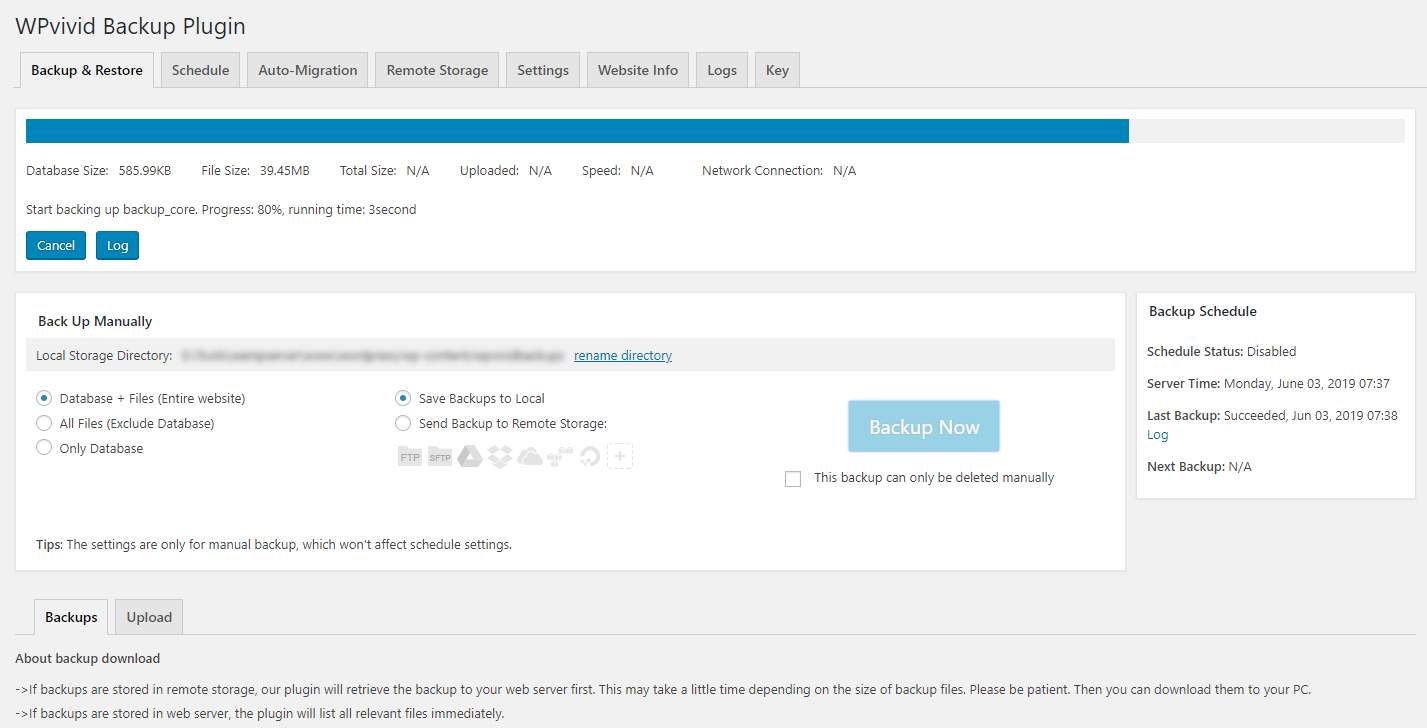
WPvivid is the budget-friendly contender that still tries to cover a lot of ground. Its current WordPress.org listing is impressive: 98% rating from 1,503 ratings and about 900,000 active installs. That makes it one of the more compelling value options in the group, especially for users who need backup, restore, staging, and migration without paying for the most managed tier on the shelf.
One reason WPvivid belongs in this review is that it often gives smaller teams a lot of practical capability. For a reader who does not want to cobble together separate tools, that matters. A tool can be affordable and still be serious. Those are not contradictions.
WPvivid is also easy to explain in plain language: it helps you back up the site, restore it, move it, and test it. That is a strong set of verbs for one plugin to own.
What stands out
- Broad feature coverage for the price-sensitive user.
- Backup, restore, staging, and migration in one place.
- Good fit for smaller sites that still need serious recovery options.
- Strong rating snapshot, which suggests a generally satisfied user base.
Pros
WPvivid is a practical choice when you want value without giving up essential recovery tools. It is especially attractive for site owners who do not need a high-touch managed service but still want more than a barebones backup utility. For many readers, that is the sweet spot.
It also helps that the tool can support staging and migration. That means the budget choice is not necessarily the weak choice. In maintenance work, that is a pleasant surprise.
Cons
The main risk with a broad feature set is that not every user needs all of it. If your workflow is tiny and simple, WPvivid may feel broader than you need. Also, like any plugin that does several jobs, it rewards users who take the time to configure things properly.
That said, it is hard to call a tool a bad value when it offers this much practical coverage.
Best fit
Choose WPvivid if you want strong feature coverage at a friendlier price point and you are comfortable handling a little setup yourself. It is one of the best budget-minded options for a site that still needs serious protection.
Common review theme: users tend to like the range of features available without moving immediately into the most expensive category of tools.
The official WPvivid backup page is the best place to confirm current product details.
Feature comparison, side by side
The tools above solve the same problem in slightly different ways. Here is the comparison that usually matters most when a reader is deciding what to install.
| Tool | User interface | Backup type | Restore style | Integration feel | Main trade-off |
|---|---|---|---|---|---|
| UpdraftPlus | Familiar and straightforward | Scheduled full backups with remote storage options | Clear restore workflow | Works well with common WordPress storage services | Less managed than some premium alternatives |
| Jetpack Backup | Clean, service-oriented | Managed backup inside the Jetpack ecosystem | Simple restore path | Tied closely to Jetpack's broader toolset | Bundle can feel heavier than a dedicated backup tool |
| BlogVault | Polished and operational | Incremental backups with off-site emphasis | One-click restore mindset | Strong staging and migration support | More premium and more opinionated |
| Duplicator | Technical, efficient | Backup plus packaging/cloning | Strong when site packaging is part of the job | Good for developers and agencies | Less friendly if you only want a simple ongoing backup routine |
| WPvivid | Practical and feature-rich | Backup, restore, staging, migration | Direct and usable | Broad capability for the price | Feature breadth can be more than a tiny site needs |
The big pattern is this: the more a tool helps with staging and migration, the more likely it is to suit technical workflows. The more it emphasizes managed recovery, the more likely it is to suit busy owners who want less decision-making during a crisis.
How to choose the right tool for your situation
There is no honest one-size-fits-all answer. The best choice depends on what kind of failure you are trying to survive and how much control you want over the recovery process.
- Pick UpdraftPlus if you want the best balance of familiarity, flexibility, and broad usefulness.
- Pick Jetpack Backup if you already use Jetpack and want backup to live inside a managed ecosystem.
- Pick BlogVault if you care about off-site recovery, staging, and a more hands-off operational model.
- Pick Duplicator if site cloning and migration are central to how you work.
- Pick WPvivid if budget matters and you still want a substantial feature set.
If you are choosing for a client, the easiest mistake is to optimize for the sales page instead of the rescue day. A shiny dashboard is pleasant. A restore that works when a plugin update breaks the site is more valuable.
The other useful question is whether the tool matches the rest of your maintenance practice. If you already have a service layer, a managed product may fit better. If you prefer to keep control in-house, a more flexible plugin may be the right call.
Conclusion and recommendations
After comparing the five tools, the clearest conclusion is not that one product wins every category. It is that each tool wins a different version of the same problem. Backup is really about removing panic from recovery, and the right software should make that easier, not more dramatic.
Best overall: UpdraftPlus. It is the most balanced choice for most readers because it combines flexibility, reach, and a restore process that feels practical rather than fussy.
Best budget option: WPvivid. It gives a lot of capability for the money and is especially attractive if you want backup, restore, staging, and migration without paying for the most managed stack available.
Best advanced or migration-heavy option: Duplicator. If your work regularly involves cloning or moving sites, it is the sharpest specialist in the list.
If you want the shortest recommendation possible, here it is: choose the tool that you will configure this week and test next week. A good backup policy is only useful if it survives contact with reality. That is the real test, and it is usually a quieter one than people expect.
For next steps, you can return to the blog index for related site-maintenance guides, visit the services page if you want support, or read the website restoration guide for a fuller look at recovery planning.
- Backups protect against failure, update conflicts, and accidental loss.
- The strongest tools make restore paths easy to find and simple to use.
- Ratings and active installs help, but workflow fit matters more.
- Budget, staging, migration, and managed recovery point to different winners.
- The right choice is the one you will actually test before you need it.